> ## Documentation Index
> Fetch the complete documentation index at: https://mcp.vyagent.com/llms.txt
> Use this file to discover all available pages before exploring further.
# For Claude Desktop Users
> Get started using pre-built servers in Claude for Desktop.
In this tutorial, you will extend [Claude for Desktop](https://claude.ai/download) so that it can read from your computer's file system, write new files, move files, and even search files.
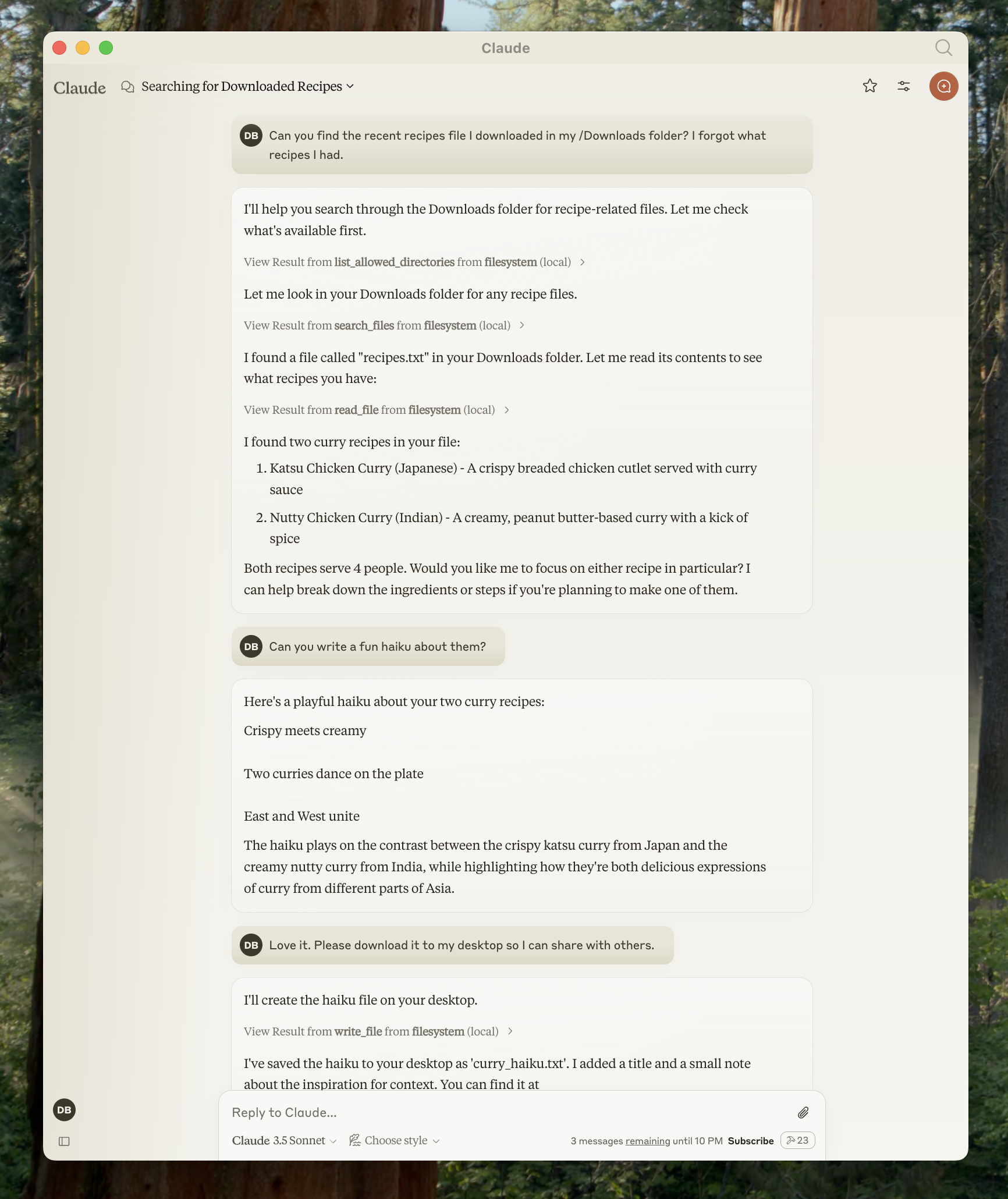 Don't worry — it will ask you for your permission before executing these actions!
## 1. Download Claude for Desktop
Start by downloading [Claude for Desktop](https://claude.ai/download), choosing either macOS or Windows. (Linux is not yet supported for Claude for Desktop.)
Follow the installation instructions.
If you already have Claude for Desktop, make sure it's on the latest version by clicking on the Claude menu on your computer and selecting "Check for Updates..."
Because servers are locally run, MCP currently only supports desktop hosts. Remote hosts are in active development.
## 2. Add the Filesystem MCP Server
To add this filesystem functionality, we will be installing a pre-built [Filesystem MCP Server](https://github.com/modelcontextprotocol/servers/tree/main/src/filesystem) to Claude for Desktop. This is one of dozens of [servers](https://github.com/modelcontextprotocol/servers/tree/main) created by Anthropic and the community.
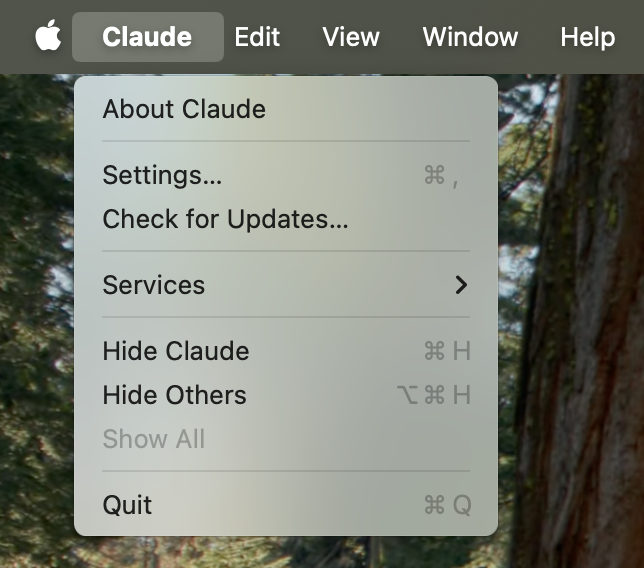
Get started by opening up the Claude menu on your computer and select "Settings..." Please note that these are not the Claude Account Settings found in the app window itself.
This is what it should look like on a Mac:
Don't worry — it will ask you for your permission before executing these actions!
## 1. Download Claude for Desktop
Start by downloading [Claude for Desktop](https://claude.ai/download), choosing either macOS or Windows. (Linux is not yet supported for Claude for Desktop.)
Follow the installation instructions.
If you already have Claude for Desktop, make sure it's on the latest version by clicking on the Claude menu on your computer and selecting "Check for Updates..."
Because servers are locally run, MCP currently only supports desktop hosts. Remote hosts are in active development.
## 2. Add the Filesystem MCP Server
To add this filesystem functionality, we will be installing a pre-built [Filesystem MCP Server](https://github.com/modelcontextprotocol/servers/tree/main/src/filesystem) to Claude for Desktop. This is one of dozens of [servers](https://github.com/modelcontextprotocol/servers/tree/main) created by Anthropic and the community.
Get started by opening up the Claude menu on your computer and select "Settings..." Please note that these are not the Claude Account Settings found in the app window itself.
This is what it should look like on a Mac:
 Click on "Developer" in the lefthand bar of the Settings pane, and then click on "Edit Config":
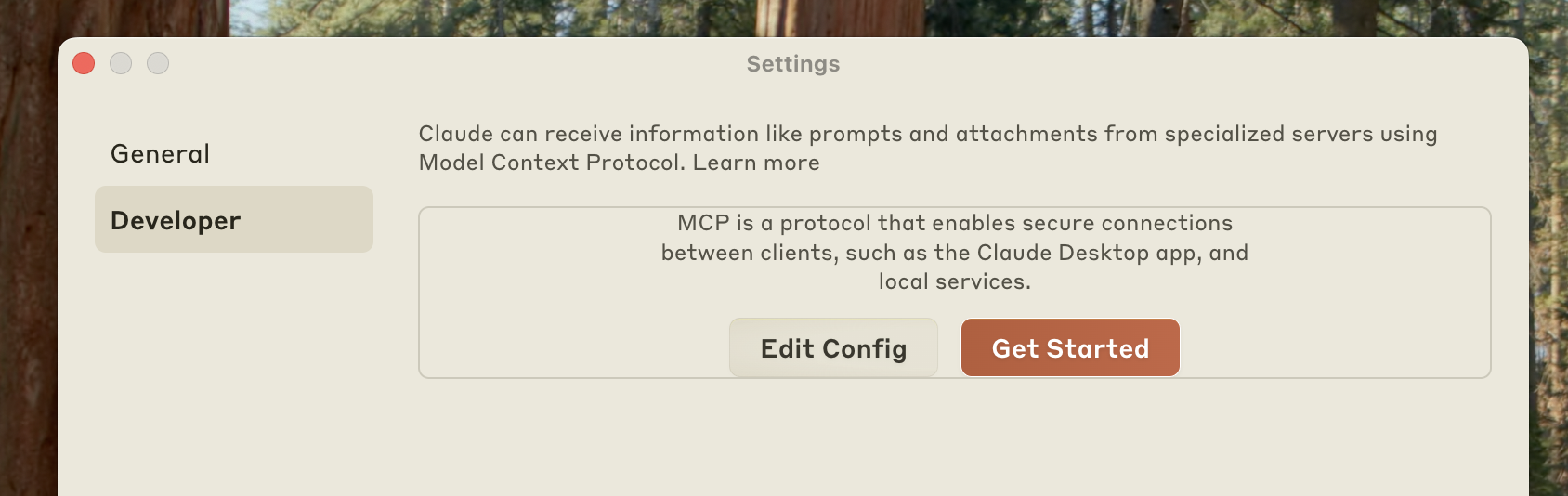 This will create a configuration file at:
* macOS: `~/Library/Application Support/Claude/claude_desktop_config.json`
* Windows: `%APPDATA%\Claude\claude_desktop_config.json`
if you don't already have one, and will display the file in your file system.
Open up the configuration file in any text editor. Replace the file contents with this:
```json
{
"mcpServers": {
"filesystem": {
"command": "npx",
"args": [
"-y",
"@modelcontextprotocol/server-filesystem",
"/Users/username/Desktop",
"/Users/username/Downloads"
]
}
}
}
```
```json
{
"mcpServers": {
"filesystem": {
"command": "npx",
"args": [
"-y",
"@modelcontextprotocol/server-filesystem",
"C:\\Users\\username\\Desktop",
"C:\\Users\\username\\Downloads"
]
}
}
}
```
Make sure to replace `username` with your computer's username. The paths should point to valid directories that you want Claude to be able to access and modify. It's set up to work for Desktop and Downloads, but you can add more paths as well.
You will also need [Node.js](https://nodejs.org) on your computer for this to run properly. To verify you have Node installed, open the command line on your computer.
* On macOS, open the Terminal from your Applications folder
* On Windows, press Windows + R, type "cmd", and press Enter
Once in the command line, verify you have Node installed by entering in the following command:
```bash
node --version
```
If you get an error saying "command not found" or "node is not recognized", download Node from [nodejs.org](https://nodejs.org/).
**How does the configuration file work?**
This configuration file tells Claude for Desktop which MCP servers to start up every time you start the application. In this case, we have added one server called "filesystem" that will use the Node `npx` command to install and run `@modelcontextprotocol/server-filesystem`. This server, described [here](https://github.com/modelcontextprotocol/servers/tree/main/src/filesystem), will let you access your file system in Claude for Desktop.
**Command Privileges**
Claude for Desktop will run the commands in the configuration file with the permissions of your user account, and access to your local files. Only add commands if you understand and trust the source.
## 3. Restart Claude
After updating your configuration file, you need to restart Claude for Desktop.
Upon restarting, you should see a hammer
This will create a configuration file at:
* macOS: `~/Library/Application Support/Claude/claude_desktop_config.json`
* Windows: `%APPDATA%\Claude\claude_desktop_config.json`
if you don't already have one, and will display the file in your file system.
Open up the configuration file in any text editor. Replace the file contents with this:
```json
{
"mcpServers": {
"filesystem": {
"command": "npx",
"args": [
"-y",
"@modelcontextprotocol/server-filesystem",
"/Users/username/Desktop",
"/Users/username/Downloads"
]
}
}
}
```
```json
{
"mcpServers": {
"filesystem": {
"command": "npx",
"args": [
"-y",
"@modelcontextprotocol/server-filesystem",
"C:\\Users\\username\\Desktop",
"C:\\Users\\username\\Downloads"
]
}
}
}
```
Make sure to replace `username` with your computer's username. The paths should point to valid directories that you want Claude to be able to access and modify. It's set up to work for Desktop and Downloads, but you can add more paths as well.
You will also need [Node.js](https://nodejs.org) on your computer for this to run properly. To verify you have Node installed, open the command line on your computer.
* On macOS, open the Terminal from your Applications folder
* On Windows, press Windows + R, type "cmd", and press Enter
Once in the command line, verify you have Node installed by entering in the following command:
```bash
node --version
```
If you get an error saying "command not found" or "node is not recognized", download Node from [nodejs.org](https://nodejs.org/).
**How does the configuration file work?**
This configuration file tells Claude for Desktop which MCP servers to start up every time you start the application. In this case, we have added one server called "filesystem" that will use the Node `npx` command to install and run `@modelcontextprotocol/server-filesystem`. This server, described [here](https://github.com/modelcontextprotocol/servers/tree/main/src/filesystem), will let you access your file system in Claude for Desktop.
**Command Privileges**
Claude for Desktop will run the commands in the configuration file with the permissions of your user account, and access to your local files. Only add commands if you understand and trust the source.
## 3. Restart Claude
After updating your configuration file, you need to restart Claude for Desktop.
Upon restarting, you should see a hammer  icon in the bottom right corner of the input box:
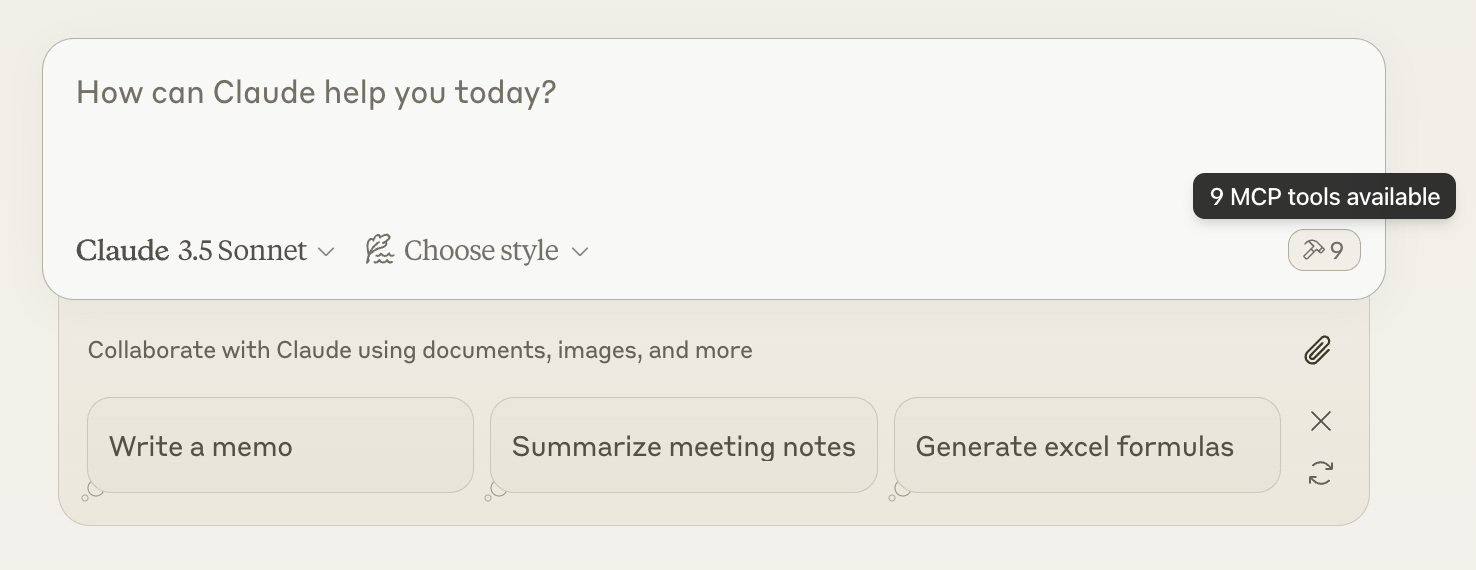 After clicking on the hammer icon, you should see the tools that come with the Filesystem MCP Server:
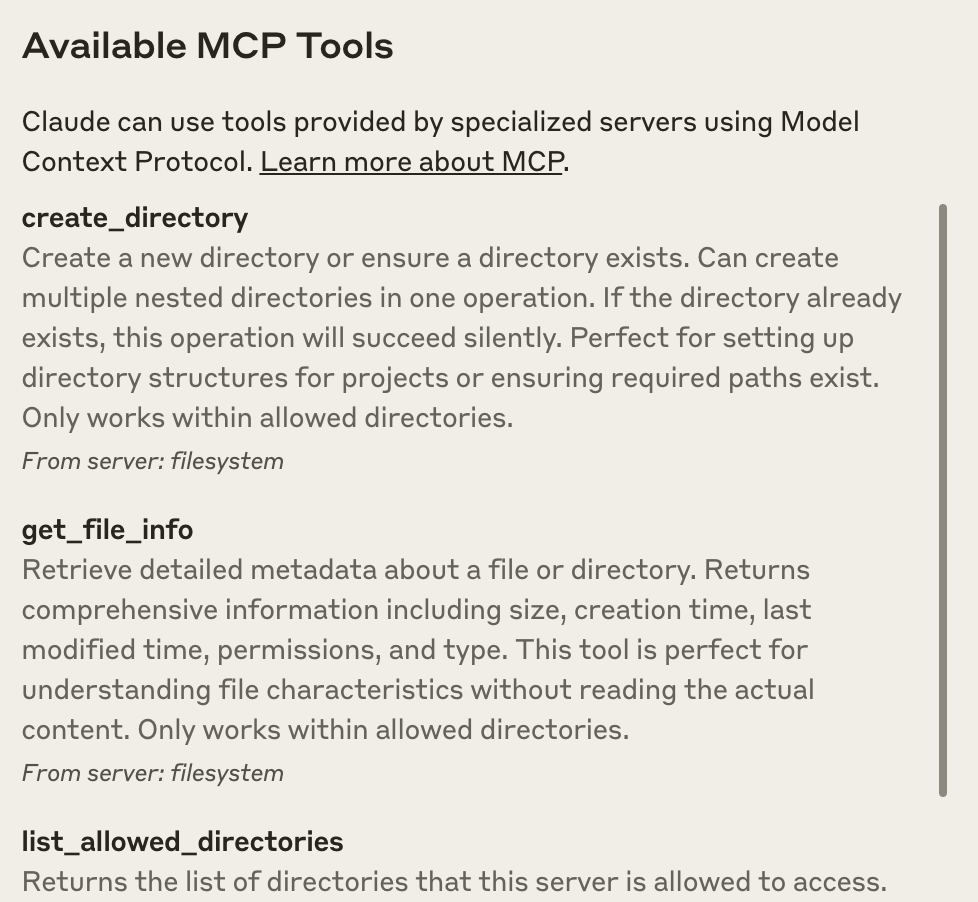 If your server isn't being picked up by Claude for Desktop, proceed to the [Troubleshooting](#troubleshooting) section for debugging tips.
## 4. Try it out!
You can now talk to Claude and ask it about your filesystem. It should know when to call the relevant tools.
Things you might try asking Claude:
* Can you write a poem and save it to my desktop?
* What are some work-related files in my downloads folder?
* Can you take all the images on my desktop and move them to a new folder called "Images"?
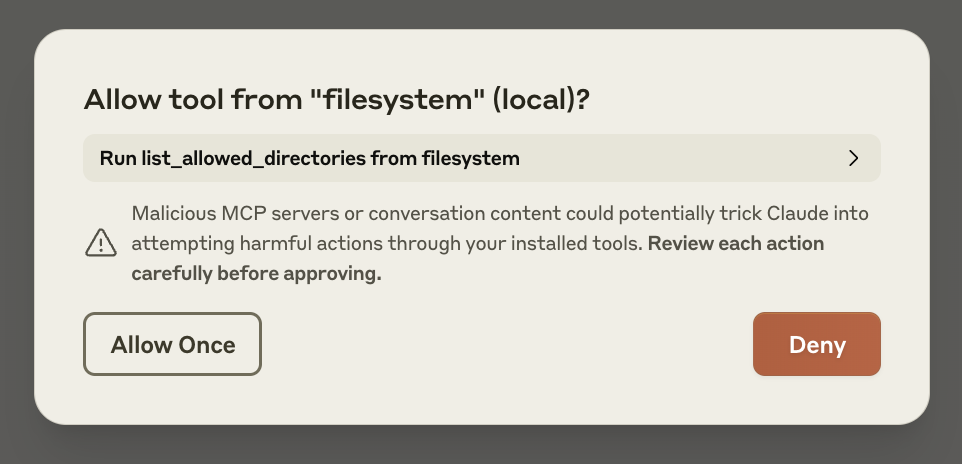
As needed, Claude will call the relevant tools and seek your approval before taking an action:
If your server isn't being picked up by Claude for Desktop, proceed to the [Troubleshooting](#troubleshooting) section for debugging tips.
## 4. Try it out!
You can now talk to Claude and ask it about your filesystem. It should know when to call the relevant tools.
Things you might try asking Claude:
* Can you write a poem and save it to my desktop?
* What are some work-related files in my downloads folder?
* Can you take all the images on my desktop and move them to a new folder called "Images"?
As needed, Claude will call the relevant tools and seek your approval before taking an action:
 ## Troubleshooting
1. Restart Claude for Desktop completely
2. Check your `claude_desktop_config.json` file syntax
3. Make sure the file paths included in `claude_desktop_config.json` are valid and that they are absolute and not relative
4. Look at [logs](#getting-logs-from-claude-for-desktop) to see why the server is not connecting
5. In your command line, try manually running the server (replacing `username` as you did in `claude_desktop_config.json`) to see if you get any errors:
```bash
npx -y @modelcontextprotocol/server-filesystem /Users/username/Desktop /Users/username/Downloads
```
```bash
npx -y @modelcontextprotocol/server-filesystem C:\Users\username\Desktop C:\Users\username\Downloads
```
Claude.app logging related to MCP is written to log files in:
* macOS: `~/Library/Logs/Claude`
* Windows: `%APPDATA%\Claude\logs`
* `mcp.log` will contain general logging about MCP connections and connection failures.
* Files named `mcp-server-SERVERNAME.log` will contain error (stderr) logging from the named server.
You can run the following command to list recent logs and follow along with any new ones (on Windows, it will only show recent logs):
```bash
# Check Claude's logs for errors
tail -n 20 -f ~/Library/Logs/Claude/mcp*.log
```
```bash
type "%APPDATA%\Claude\logs\mcp*.log"
```
If Claude attempts to use the tools but they fail:
1. Check Claude's logs for errors
2. Verify your server builds and runs without errors
3. Try restarting Claude for Desktop
Please refer to our [debugging guide](/docs/tools/debugging) for better debugging tools and more detailed guidance.
If your configured server fails to load, and you see within its logs an error referring to `${APPDATA}` within a path, you may need to add the expanded value of `%APPDATA%` to your `env` key in `claude_desktop_config.json`:
```json
{
"brave-search": {
"command": "npx",
"args": ["-y", "@modelcontextprotocol/server-brave-search"],
"env": {
"APPDATA": "C:\\Users\\user\\AppData\\Roaming\\",
"BRAVE_API_KEY": "..."
}
}
}
```
With this change in place, launch Claude Desktop once again.
**NPM should be installed globally**
The `npx` command may continue to fail if you have not installed NPM globally. If NPM is already installed globally, you will find `%APPDATA%\npm` exists on your system. If not, you can install NPM globally by running the following command:
```bash
npm install -g npm
```
## Next steps
Check out our gallery of official MCP servers and implementations
Now build your own custom server to use in Claude for Desktop and other clients
## Troubleshooting
1. Restart Claude for Desktop completely
2. Check your `claude_desktop_config.json` file syntax
3. Make sure the file paths included in `claude_desktop_config.json` are valid and that they are absolute and not relative
4. Look at [logs](#getting-logs-from-claude-for-desktop) to see why the server is not connecting
5. In your command line, try manually running the server (replacing `username` as you did in `claude_desktop_config.json`) to see if you get any errors:
```bash
npx -y @modelcontextprotocol/server-filesystem /Users/username/Desktop /Users/username/Downloads
```
```bash
npx -y @modelcontextprotocol/server-filesystem C:\Users\username\Desktop C:\Users\username\Downloads
```
Claude.app logging related to MCP is written to log files in:
* macOS: `~/Library/Logs/Claude`
* Windows: `%APPDATA%\Claude\logs`
* `mcp.log` will contain general logging about MCP connections and connection failures.
* Files named `mcp-server-SERVERNAME.log` will contain error (stderr) logging from the named server.
You can run the following command to list recent logs and follow along with any new ones (on Windows, it will only show recent logs):
```bash
# Check Claude's logs for errors
tail -n 20 -f ~/Library/Logs/Claude/mcp*.log
```
```bash
type "%APPDATA%\Claude\logs\mcp*.log"
```
If Claude attempts to use the tools but they fail:
1. Check Claude's logs for errors
2. Verify your server builds and runs without errors
3. Try restarting Claude for Desktop
Please refer to our [debugging guide](/docs/tools/debugging) for better debugging tools and more detailed guidance.
If your configured server fails to load, and you see within its logs an error referring to `${APPDATA}` within a path, you may need to add the expanded value of `%APPDATA%` to your `env` key in `claude_desktop_config.json`:
```json
{
"brave-search": {
"command": "npx",
"args": ["-y", "@modelcontextprotocol/server-brave-search"],
"env": {
"APPDATA": "C:\\Users\\user\\AppData\\Roaming\\",
"BRAVE_API_KEY": "..."
}
}
}
```
With this change in place, launch Claude Desktop once again.
**NPM should be installed globally**
The `npx` command may continue to fail if you have not installed NPM globally. If NPM is already installed globally, you will find `%APPDATA%\npm` exists on your system. If not, you can install NPM globally by running the following command:
```bash
npm install -g npm
```
## Next steps
Check out our gallery of official MCP servers and implementations
Now build your own custom server to use in Claude for Desktop and other clients