> ## Documentation Index
> Fetch the complete documentation index at: https://mcp.vyagent.com/llms.txt
> Use this file to discover all available pages before exploring further.
# 服务器开发者指南
> 学习如何构建自己的服务器,以便在 Claude for Desktop 和其他客户端中使用。
在本教程中,我们将构建一个简单的 MCP 天气服务器,并将其连接到宿主环境 Claude for Desktop。我们将从基本设置开始,然后逐步过渡到更复杂的用例。
### 我们要构建什么
目前许多 LLM(包括 Claude)都没有获取天气预报和严重天气警报的能力。让我们使用 MCP 来解决这个问题!
我们将构建一个暴露两个工具的服务器:`get-alerts` 和 `get-forecast`。然后我们将把服务器连接到一个 MCP 宿主环境(在本例中是 Claude for Desktop):
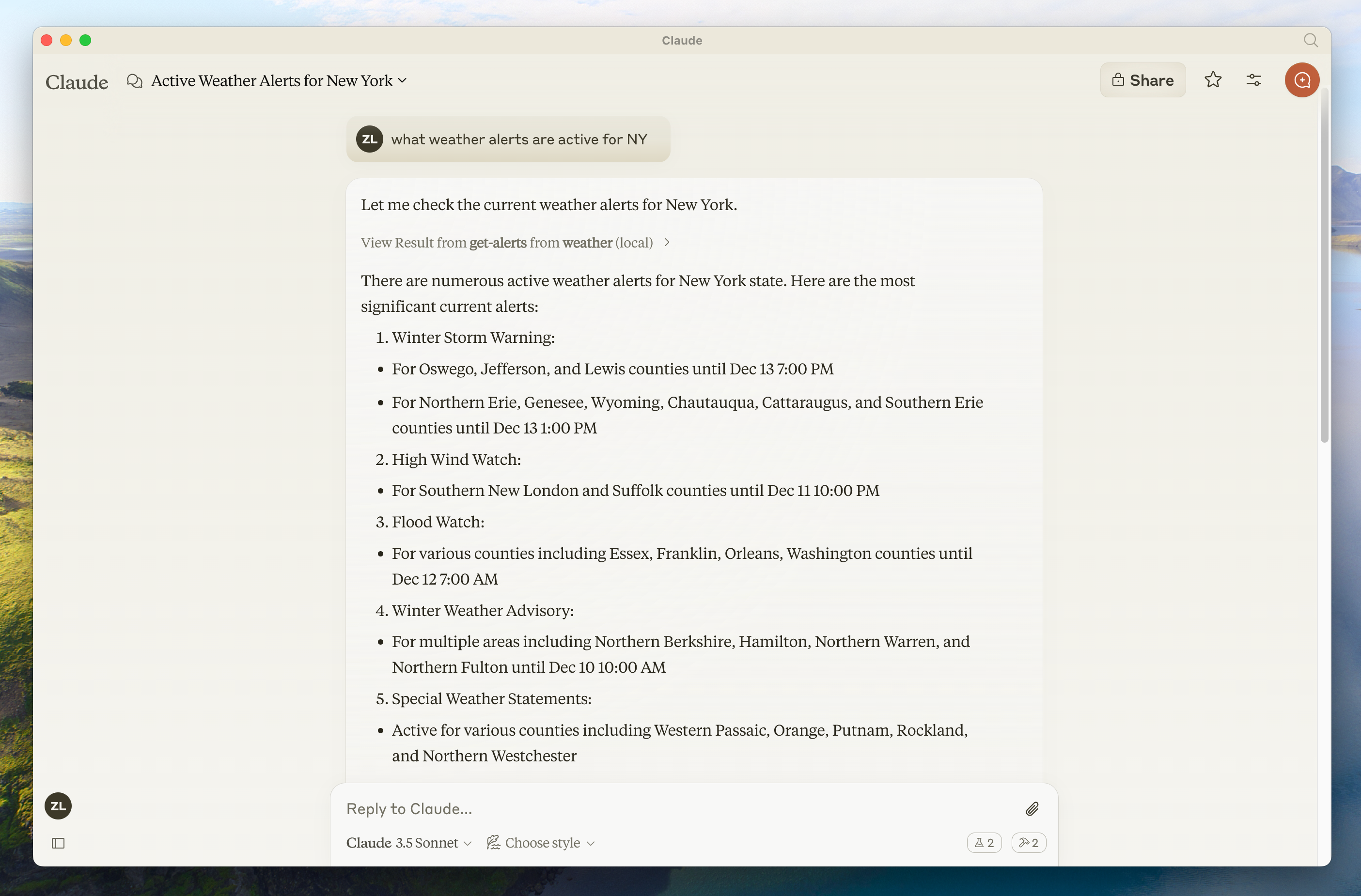
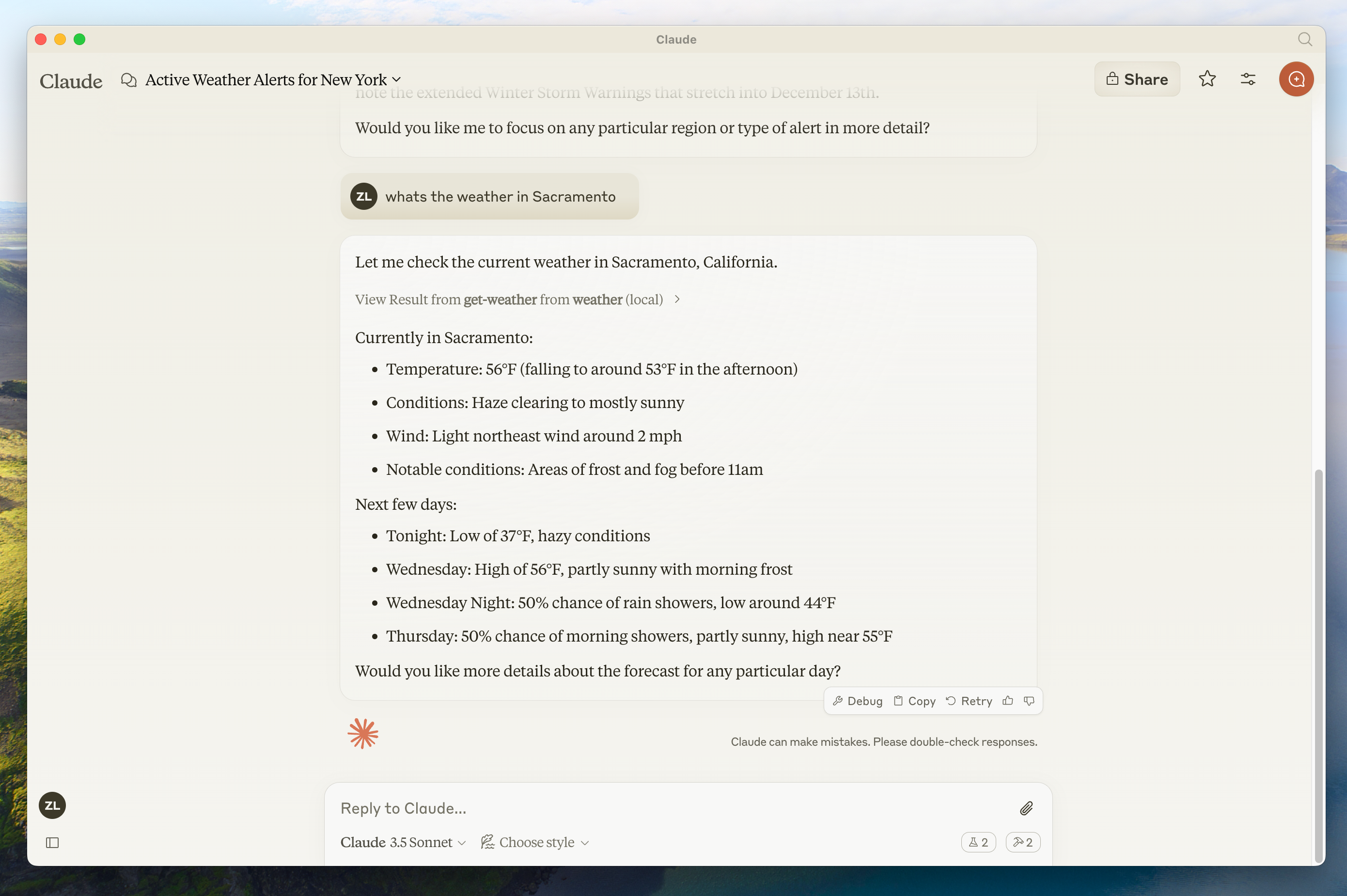 服务器可以连接到任何客户端。我们在这里选择 Claude for Desktop 是为了简单起见,但我们也有[构建自己的客户端](/quickstart/client)的指南以及[其他客户端列表](/clients)。
因为服务器是本地运行的,MCP 目前只支持桌面宿主环境。远程宿主环境正在积极开发中。
### MCP 核心概念
MCP 服务器可以提供三种主要类型的功能:
1. **资源(Resources)**:可以被客户端读取的类文件数据(如 API 响应或文件内容)
2. **工具(Tools)**:可以被 LLM 调用的函数(需要用户批准)
3. **提示(Prompts)**:帮助用户完成特定任务的预写模板
本教程将主要关注工具的使用。
让我们开始构建我们的天气服务器
### 前置知识
本快速入门假设你熟悉:
* Python
* LLM(如 Claude)
### 系统要求
* 安装 Python 3.10 或更高版本
* 必须使用 Python MCP SDK 1.2.0 或更高版本
### 设置环境
首先,让我们安装 `uv` 并设置 Python 项目和环境:
```bash MacOS/Linux theme={null}
curl -LsSf https://astral.sh/uv/install.sh | sh
```
```powershell Windows theme={null}
powershell -ExecutionPolicy ByPass -c "irm https://astral.sh/uv/install.ps1 | iex"
```
安装完成后,请确保重启终端以确保 `uv` 命令可以被正常使用。
现在,让我们创建并设置我们的项目:
```bash MacOS/Linux theme={null}
# 创建项目目录
uv init weather
cd weather
# 创建并激活虚拟环境
uv venv
source .venv/bin/activate
# 安装依赖
uv add "mcp[cli]" httpx
# 创建服务器文件
touch weather.py
```
```powershell Windows theme={null}
# 创建项目目录
uv init weather
cd weather
# 创建并激活虚拟环境
uv venv
.venv\Scripts\activate
# 安装依赖
uv add mcp[cli] httpx
# 创建服务器文件
new-item weather.py
```
现在让我们深入构建服务器。
## 构建服务器
### 导入包和设置实例
将以下内容添加到 `weather.py` 的顶部:
```python theme={null}
from typing import Any
import httpx
from mcp.server.fastmcp import FastMCP
# Initialize FastMCP server
mcp = FastMCP("weather")
# Constants
NWS_API_BASE = "https://api.weather.gov"
USER_AGENT = "weather-app/1.0"
```
FastMCP 类使用 Python 类型提示和文档字符串自动生成工具定义,使创建和维护 MCP 工具变得容易。
### 辅助函数
接下来,让我们添加用于查询和格式化国家气象服务 API 数据的辅助函数:
```python theme={null}
async def make_nws_request(url: str) -> dict[str, Any] | None:
"""Make a request to the NWS API with proper error handling."""
headers = {
"User-Agent": USER_AGENT,
"Accept": "application/geo+json"
}
async with httpx.AsyncClient() as client:
try:
response = await client.get(url, headers=headers, timeout=30.0)
response.raise_for_status()
return response.json()
except Exception:
return None
def format_alert(feature: dict) -> str:
"""Format an alert feature into a readable string."""
props = feature["properties"]
return f"""
Event: {props.get('event', 'Unknown')}
Area: {props.get('areaDesc', 'Unknown')}
Severity: {props.get('severity', 'Unknown')}
Description: {props.get('description', 'No description available')}
Instructions: {props.get('instruction', 'No specific instructions provided')}
"""
```
### 实现工具执行
工具执行处理器负责实际执行每个工具的逻辑。让我们添加它:
```python theme={null}
@mcp.tool()
async def get_alerts(state: str) -> str:
"""Get weather alerts for a US state.
Args:
state: Two-letter US state code (e.g. CA, NY)
"""
url = f"{NWS_API_BASE}/alerts/active/area/{state}"
data = await make_nws_request(url)
if not data or "features" not in data:
return "Unable to fetch alerts or no alerts found."
if not data["features"]:
return "No active alerts for this state."
alerts = [format_alert(feature) for feature in data["features"]]
return "\n---\n".join(alerts)
@mcp.tool()
async def get_forecast(latitude: float, longitude: float) -> str:
"""Get weather forecast for a location.
Args:
latitude: Latitude of the location
longitude: Longitude of the location
"""
# First get the forecast grid endpoint
points_url = f"{NWS_API_BASE}/points/{latitude},{longitude}"
points_data = await make_nws_request(points_url)
if not points_data:
return "Unable to fetch forecast data for this location."
# Get the forecast URL from the points response
forecast_url = points_data["properties"]["forecast"]
forecast_data = await make_nws_request(forecast_url)
if not forecast_data:
return "Unable to fetch detailed forecast."
# Format the periods into a readable forecast
periods = forecast_data["properties"]["periods"]
forecasts = []
for period in periods[:5]: # Only show next 5 periods
forecast = f"""
{period['name']}:
Temperature: {period['temperature']}°{period['temperatureUnit']}
Wind: {period['windSpeed']} {period['windDirection']}
Forecast: {period['detailedForecast']}
"""
forecasts.append(forecast)
return "\n---\n".join(forecasts)
```
### 运行服务器
最后,让我们初始化并运行服务器:
```python theme={null}
if __name__ == "__main__":
# 初始化并运行服务器
mcp.run(transport='stdio')
```
你的服务器已经完成!运行 `uv run weather.py` 来确认一切正常工作。
现在让我们从一个现有的 MCP 宿主环境 Claude for Desktop 测试你的服务器。
## 使用 Claude for Desktop 测试服务器
Claude for Desktop 目前尚未在 Linux 上提供。Linux 用户可以继续学习[构建客户端](/quickstart/client)教程,以构建一个连接到我们刚刚构建的服务器的 MCP 客户端。
首先,确保你已安装 Claude for Desktop。[你可以在这里安装最新版本](https://claude.ai/download)。如果你已经安装了 Claude for Desktop,**请确保它已更新到最新版本。**
我们需要为你想要使用的 MCP 服务器配置 Claude for Desktop。为此,请在文本编辑器中打开你的 Claude for Desktop 应用程序配置文件,路径为 `~/Library/Application Support/Claude/claude_desktop_config.json`。如果该文件不存在,请创建它。
例如,如果你安装了 [VS Code](https://code.visualstudio.com/):
```bash theme={null}
code ~/Library/Application\ Support/Claude/claude_desktop_config.json
```
```powershell theme={null}
code $env:AppData\Claude\claude_desktop_config.json
```
然后你需要在 `mcpServers` 键中添加你的服务器。只有在至少正确配置了一个服务器的情况下,MCP UI 元素才会在 Claude for Desktop 中显示。
在这种情况下,我们将添加我们的单个天气服务器,如下所示:
```json Python theme={null}
{
"mcpServers": {
"weather": {
"command": "uv",
"args": [
"--directory",
"/ABSOLUTE/PATH/TO/PARENT/FOLDER/weather",
"run",
"weather.py"
]
}
}
}
```
```json Python theme={null}
{
"mcpServers": {
"weather": {
"command": "uv",
"args": [
"--directory",
"C:\\ABSOLUTE\\PATH\\TO\\PARENT\\FOLDER\\weather",
"run",
"weather.py"
]
}
}
}
```
你可能需要在 `command` 字段中填写 `uv` 可执行文件的完整路径。你可以通过在 MacOS/Linux 上运行 `which uv` 或在 Windows 上运行 `where uv` 来获取。
确保你传入服务器的绝对路径。
这告诉 Claude for Desktop:
1. 有一个名为 "weather" 的 MCP 服务器
2. 通过运行 `uv --directory /ABSOLUTE/PATH/TO/PARENT/FOLDER/weather run weather` 来启动它
保存文件,然后重启 **Claude for Desktop**。
让我们开始构建我们的天气服务器
### 前置知识
本快速入门假设你熟悉:
* TypeScript
* LLM(如 Claude)
### 系统要求
对于 TypeScript,请确保你已安装最新版本的 Node。
### 设置环境
首先,如果你还没有安装 Node.js 和 npm,请先安装。你可以从 [nodejs.org](https://nodejs.org/) 下载。
验证你的 Node.js 安装:
```bash theme={null}
node --version
npm --version
```
对于本教程,你需要 Node.js 16 或更高版本。
现在,让我们创建并设置我们的项目:
```bash MacOS/Linux theme={null}
# 创建项目目录
mkdir weather
cd weather
# 初始化 npm 项目
npm init -y
# 安装依赖
npm install @modelcontextprotocol/sdk zod
npm install -D @types/node typescript
# 创建文件
mkdir src
touch src/index.ts
```
```powershell Windows theme={null}
# 创建项目目录
md weather
cd weather
# 初始化 npm 项目
npm init -y
# 安装依赖
npm install @modelcontextprotocol/sdk zod
npm install -D @types/node typescript
# 创建文件
md src
new-item src\index.ts
```
更新你的 package.json 以添加 type: "module" 和构建脚本:
```json package.json theme={null}
{
"type": "module",
"bin": {
"weather": "./build/index.js"
},
"scripts": {
"build": "tsc && node -e \"require('fs').chmodSync('build/index.js', '755')\"",
},
"files": [
"build"
],
}
```
在项目根目录创建 `tsconfig.json`:
```json tsconfig.json theme={null}
{
"compilerOptions": {
"target": "ES2022",
"module": "Node16",
"moduleResolution": "Node16",
"outDir": "./build",
"rootDir": "./src",
"strict": true,
"esModuleInterop": true,
"skipLibCheck": true,
"forceConsistentCasingInFileNames": true
},
"include": ["src/**/*"],
"exclude": ["node_modules"]
}
```
现在让我们开始构建服务器。
## 构建服务器
### 导入包和设置实例
将以下内容添加到 `src/index.ts` 的顶部:
```typescript theme={null}
import { McpServer } from "@modelcontextprotocol/sdk/server/mcp.js";
import { StdioServerTransport } from "@modelcontextprotocol/sdk/server/stdio.js";
import { z } from "zod";
const NWS_API_BASE = "https://api.weather.gov";
const USER_AGENT = "weather-app/1.0";
// Create server instance
const server = new McpServer({
name: "weather",
version: "1.0.0",
});
```
### 辅助函数
接下来,让我们添加用于查询和格式化国家气象服务 API 数据的辅助函数:
```typescript theme={null}
// 用于发送 NWS API 请求的辅助函数
async function makeNWSRequest(url: string): Promise {
const headers = {
"User-Agent": USER_AGENT,
Accept: "application/geo+json",
};
try {
const response = await fetch(url, { headers });
if (!response.ok) {
throw new Error(`HTTP error! status: ${response.status}`);
}
return (await response.json()) as T;
} catch (error) {
console.error("Error making NWS request:", error);
return null;
}
}
interface AlertFeature {
properties: {
event?: string;
areaDesc?: string;
severity?: string;
status?: string;
headline?: string;
};
}
// 格式化警报数据
function formatAlert(feature: AlertFeature): string {
const props = feature.properties;
return [
`Event: ${props.event || "Unknown"}`,
`Area: ${props.areaDesc || "Unknown"}`,
`Severity: ${props.severity || "Unknown"}`,
`Status: ${props.status || "Unknown"}`,
`Headline: ${props.headline || "No headline"}`,
"---",
].join("\n");
}
interface ForecastPeriod {
name?: string;
temperature?: number;
temperatureUnit?: string;
windSpeed?: string;
windDirection?: string;
shortForecast?: string;
}
interface AlertsResponse {
features: AlertFeature[];
}
interface PointsResponse {
properties: {
forecast?: string;
};
}
interface ForecastResponse {
properties: {
periods: ForecastPeriod[];
};
}
```
### 实现工具执行
工具执行处理器负责实际执行每个工具的逻辑。让我们添加它:
```typescript theme={null}
// 注册天气工具
server.tool(
"get-alerts",
"获取指定州的天气预警",
{
state: z.string().length(2).describe("两字母州代码(例如 CA, NY)"),
},
async ({ state }) => {
const stateCode = state.toUpperCase();
const alertsUrl = `${NWS_API_BASE}/alerts?area=${stateCode}`;
const alertsData = await makeNWSRequest(alertsUrl);
if (!alertsData) {
return {
content: [
{
type: "text",
text: "无法获取预警数据",
},
],
};
}
const features = alertsData.features || [];
if (features.length === 0) {
return {
content: [
{
type: "text",
text: `${stateCode} 没有活动预警`,
},
],
};
}
const formattedAlerts = features.map(formatAlert);
const alertsText = `${stateCode} 的活动预警:\n\n${formattedAlerts.join("\n")}`;
return {
content: [
{
type: "text",
text: alertsText,
},
],
};
},
);
server.tool(
"get-forecast",
"获取指定位置的天气预报",
{
latitude: z.number().min(-90).max(90).describe("位置的纬度"),
longitude: z.number().min(-180).max(180).describe("位置的经度"),
},
async ({ latitude, longitude }) => {
// 获取网格点数据
const pointsUrl = `${NWS_API_BASE}/points/${latitude.toFixed(4)},${longitude.toFixed(4)}`;
const pointsData = await makeNWSRequest(pointsUrl);
if (!pointsData) {
return {
content: [
{
type: "text",
text: `无法获取坐标:${latitude}, ${longitude} 的网格点数据。该位置可能不被 NWS API 支持(仅支持美国地区)。`,
},
],
};
}
const forecastUrl = pointsData.properties?.forecast;
if (!forecastUrl) {
return {
content: [
{
type: "text",
text: "无法从网格点数据获取预报 URL",
},
],
};
}
// 获取预报数据
const forecastData = await makeNWSRequest(forecastUrl);
if (!forecastData) {
return {
content: [
{
type: "text",
text: "无法获取预报数据",
},
],
};
}
const periods = forecastData.properties?.periods || [];
if (periods.length === 0) {
return {
content: [
{
type: "text",
text: "没有可用的预报时段",
},
],
};
}
// 格式化预报时段
const formattedForecast = periods.map((period: ForecastPeriod) =>
[
`${period.name || "未知"}:`,
`温度: ${period.temperature || "未知"}°${period.temperatureUnit || "F"}`,
`风况: ${period.windSpeed || "未知"} ${period.windDirection || ""}`,
`${period.shortForecast || "无可用预报"}`,
"---",
].join("\n"),
);
const forecastText = `${latitude}, ${longitude} 的预报:\n\n${formattedForecast.join("\n")}`;
return {
content: [
{
type: "text",
text: forecastText,
},
],
};
},
);
```
### 运行服务器
最后,实现运行服务器的主函数:
```typescript theme={null}
async function main() {
const transport = new StdioServerTransport();
await server.connect(transport);
console.error("Weather MCP Server 正在通过 stdio 运行");
}
main().catch((error) => {
console.error("main() 中的致命错误:", error);
process.exit(1);
});
```
确保运行 `npm run build` 来构建你的服务器!这是让你的服务器能够连接的一个非常重要的步骤。
现在让我们从一个现有的 MCP 宿主环境 Claude for Desktop 来测试你的服务器。
## 使用 Claude for Desktop 测试你的服务器
Claude for Desktop 目前尚未在 Linux 上提供。Linux 用户可以继续阅读[构建客户端](/quickstart/client)教程,构建一个可以连接到我们刚刚构建的服务器的 MCP 客户端。
首先,确保你已安装 Claude for Desktop。[你可以在这里安装最新版本](https://claude.ai/download)。如果你已经安装了 Claude for Desktop,**请确保更新到最新版本。**
我们需要为你想要使用的 MCP 服务器配置 Claude for Desktop。要做到这一点,请在文本编辑器中打开你的 Claude for Desktop 应用程序配置文件,路径为 `~/Library/Application Support/Claude/claude_desktop_config.json`。如果该文件不存在,请创建它。
例如,如果你安装了 [VS Code](https://code.visualstudio.com/):
```bash theme={null}
code ~/Library/Application\ Support/Claude/claude_desktop_config.json
```
```powershell theme={null}
code $env:AppData\Claude\claude_desktop_config.json
```
然后你需要在 `mcpServers` 键中添加你的服务器。只有当至少有一个服务器被正确配置时,MCP UI 元素才会在 Claude for Desktop 中显示。
在这种情况下,我们将添加我们的单个天气服务器,如下所示:
```json Node theme={null}
{
"mcpServers": {
"weather": {
"command": "node",
"args": [
"/ABSOLUTE/PATH/TO/PARENT/FOLDER/weather/build/index.js"
]
}
}
}
```
```json Node theme={null}
{
"mcpServers": {
"weather": {
"command": "node",
"args": [
"C:\\PATH\\TO\\PARENT\\FOLDER\\weather\\build\\index.js"
]
}
}
}
```
这告诉Claude for Desktop:
1. 有一个名为"weather"的MCP服务器
2. 通过运行`node /ABSOLUTE/PATH/TO/PARENT/FOLDER/weather/build/index.js`来启动它
保存文件,然后重启**Claude for Desktop**。
这是一个基于Spring AI MCP自动配置和启动器的快速入门演示。
要了解如何手动创建同步和异步MCP服务器,请参考[Java SDK服务器](/sdk/java/mcp-server)文档。
让我们开始构建我们的天气服务器!
[你可以在这里找到我们将要构建的完整代码。](https://github.com/spring-projects/spring-ai-examples/tree/main/model-context-protocol/weather/starter-stdio-server)
更多信息,请参见[MCP服务器启动器](https://docs.spring.io/spring-ai/reference/api/mcp/mcp-server-boot-starter-docs.html)参考文档。
关于手动MCP服务器实现,请参考[MCP服务器Java SDK文档](/sdk/java/mcp-server)。
### 系统要求
* 安装Java 17或更高版本。
* [Spring Boot 3.3.x](https://docs.spring.io/spring-boot/installing.html)或更高版本
### 设置环境
使用[Spring Initizer](https://start.spring.io/)来引导项目。
你需要添加以下依赖:
```xml theme={null}
org.springframework.ai
spring-ai-mcp-server-spring-boot-starter
org.springframework
spring-web
```
```groovy theme={null}
dependencies {
implementation platform("org.springframework.ai:spring-ai-mcp-server-spring-boot-starter")
implementation platform("org.springframework:spring-web")
}
```
然后通过设置应用程序属性来配置你的应用:
```bash application.properties theme={null}
spring.main.bannerMode=off
logging.pattern.console=
```
```yaml application.yml theme={null}
logging:
pattern:
console:
spring:
main:
banner-mode: off
```
[服务器配置属性](https://docs.spring.io/spring-ai/reference/api/mcp/mcp-server-boot-starter-docs.html#_configuration_properties)文档列出了所有可用的属性。
现在让我们深入构建你的服务器。
## 构建服务器
### 天气服务
让我们实现一个[WeatherService.java](https://github.com/spring-projects/spring-ai-examples/blob/main/model-context-protocol/weather/starter-stdio-server/src/main/java/org/springframework/ai/mcp/sample/server/WeatherService.java),它使用REST客户端从国家气象服务API查询数据:
```java theme={null}
@Service
public class WeatherService {
private final RestClient restClient;
public WeatherService() {
this.restClient = RestClient.builder()
.baseUrl("https://api.weather.gov")
.defaultHeader("Accept", "application/geo+json")
.defaultHeader("User-Agent", "WeatherApiClient/1.0 (your@email.com)")
.build();
}
@Tool(description = "获取特定经纬度的天气预报")
public String getWeatherForecastByLocation(
double latitude, // 纬度坐标
double longitude // 经度坐标
) {
// 返回详细预报,包括:
// - 温度和单位
// - 风速和风向
// - 详细预报描述
}
@Tool(description = "获取美国州的天气警报")
public String getAlerts(
@ToolParam(description = "两字母美国州代码(例如:CA, NY") String state)
) {
// 返回活动警报,包括:
// - 事件类型
// - 受影响区域
// - 严重程度
// - 描述
// - 安全指示
}
// ......
}
```
`@Service`注解会在你的应用程序上下文中自动注册服务。
Spring AI的`@Tool`注解使创建和维护MCP工具变得容易。
自动配置将自动向MCP服务器注册这些工具。
### 创建你的Boot应用程序
```java theme={null}
@SpringBootApplication
public class McpServerApplication {
public static void main(String[] args) {
SpringApplication.run(McpServerApplication.class, args);
}
@Bean
public ToolCallbackProvider weatherTools(WeatherService weatherService) {
return MethodToolCallbackProvider.builder().toolObjects(weatherService).build();
}
}
```
使用`MethodToolCallbackProvider`工具将`@Tools`转换为MCP服务器使用的可执行回调。
### 运行服务器
最后,让我们构建服务器:
```bash theme={null}
./mvnw clean install
```
这将在`target`文件夹中生成一个`mcp-weather-stdio-server-0.0.1-SNAPSHOT.jar`文件。
现在让我们从一个现有的MCP宿主环境Claude for Desktop测试你的服务器。
## 使用Claude for Desktop测试你的服务器
Claude for Desktop目前尚未在Linux上提供。
首先,确保你已安装Claude for Desktop。
[你可以在这里安装最新版本](https://claude.ai/download)。如果你已经安装了Claude for Desktop,**请确保它已更新到最新版本。**
我们需要为你想要使用的MCP服务器配置Claude for Desktop。
为此,请在文本编辑器中打开你的Claude for Desktop应用程序配置文件,路径为`~/Library/Application Support/Claude/claude_desktop_config.json`。
如果该文件不存在,请创建它。
例如,如果你安装了[VS Code](https://code.visualstudio.com/):
```bash theme={null}
code ~/Library/Application\ Support/Claude/claude_desktop_config.json
```
```powershell theme={null}
code $env:AppData\Claude\claude_desktop_config.json
```
然后你需要在 `mcpServers` 键中添加你的服务器。只有在至少正确配置了一个服务器的情况下,MCP UI 元素才会在 Claude for Desktop 中显示。
在这种情况下,我们将添加我们的单个天气服务器,如下所示:
```json java theme={null}
{
"mcpServers": {
"spring-ai-mcp-weather": {
"command": "java",
"args": [
"-Dspring.ai.mcp.server.stdio=true",
"-jar",
"/ABSOLUTE/PATH/TO/PARENT/FOLDER/mcp-weather-stdio-server-0.0.1-SNAPSHOT.jar"
]
}
}
}
```
```json java theme={null}
{
"mcpServers": {
"spring-ai-mcp-weather": {
"command": "java",
"args": [
"-Dspring.ai.mcp.server.transport=STDIO",
"-jar",
"C:\\ABSOLUTE\\PATH\\TO\\PARENT\\FOLDER\\weather\\mcp-weather-stdio-server-0.0.1-SNAPSHOT.jar"
]
}
}
}
```
确保你传入服务器的绝对路径。
这告诉 Claude for Desktop:
1. 有一个名为 "my-weather-server" 的 MCP 服务器
2. 通过运行 `java -jar /ABSOLUTE/PATH/TO/PARENT/FOLDER/mcp-weather-stdio-server-0.0.1-SNAPSHOT.jar` 来启动它
保存文件,然后重启 **Claude for Desktop**。
## 使用 Java 客户端测试你的服务器
### 手动创建 MCP 客户端
使用 `McpClient` 连接到服务器:
```java theme={null}
var stdioParams = ServerParameters.builder("java")
.args("-jar", "/ABSOLUTE/PATH/TO/PARENT/FOLDER/mcp-weather-stdio-server-0.0.1-SNAPSHOT.jar")
.build();
var stdioTransport = new StdioClientTransport(stdioParams);
var mcpClient = McpClient.sync(stdioTransport).build();
mcpClient.initialize();
ListToolsResult toolsList = mcpClient.listTools();
CallToolResult weather = mcpClient.callTool(
new CallToolRequest("getWeatherForecastByLocation",
Map.of("latitude", "47.6062", "longitude", "-122.3321")));
CallToolResult alert = mcpClient.callTool(
new CallToolRequest("getAlerts", Map.of("state", "NY")));
mcpClient.closeGracefully();
```
### 使用 MCP 客户端启动器
使用 `spring-ai-mcp-client-spring-boot-starter` 依赖创建一个新的启动器应用程序:
```xml theme={null}
org.springframework.ai
spring-ai-mcp-client-spring-boot-starter
```
并设置 `spring.ai.mcp.client.stdio.servers-configuration` 属性指向你的 `claude_desktop_config.json`。
你可以重用现有的 Anthropic Desktop 配置:
```properties theme={null}
spring.ai.mcp.client.stdio.servers-configuration=file:PATH/TO/claude_desktop_config.json
```
当你启动客户端应用程序时,自动配置将从 claude\_desktop\_config.json 自动创建 MCP 客户端。
更多信息,请参阅 [MCP 客户端启动器](https://docs.spring.io/spring-ai/reference/api/mcp/mcp-server-boot-client-docs.html) 参考文档。
## 更多 Java MCP 服务器示例
[starter-webflux-server](https://github.com/spring-projects/spring-ai-examples/tree/main/model-context-protocol/weather/starter-webflux-server) 演示了如何使用 SSE 传输创建 MCP 服务器。
它展示了如何使用 Spring Boot 的自动配置功能定义和注册 MCP 工具、资源和提示。
### 使用命令测试
让我们确保 Claude for Desktop 能够识别我们在 `weather` 服务器中暴露的两个工具。你可以通过查找锤子
服务器可以连接到任何客户端。我们在这里选择 Claude for Desktop 是为了简单起见,但我们也有[构建自己的客户端](/quickstart/client)的指南以及[其他客户端列表](/clients)。
因为服务器是本地运行的,MCP 目前只支持桌面宿主环境。远程宿主环境正在积极开发中。
### MCP 核心概念
MCP 服务器可以提供三种主要类型的功能:
1. **资源(Resources)**:可以被客户端读取的类文件数据(如 API 响应或文件内容)
2. **工具(Tools)**:可以被 LLM 调用的函数(需要用户批准)
3. **提示(Prompts)**:帮助用户完成特定任务的预写模板
本教程将主要关注工具的使用。
让我们开始构建我们的天气服务器
### 前置知识
本快速入门假设你熟悉:
* Python
* LLM(如 Claude)
### 系统要求
* 安装 Python 3.10 或更高版本
* 必须使用 Python MCP SDK 1.2.0 或更高版本
### 设置环境
首先,让我们安装 `uv` 并设置 Python 项目和环境:
```bash MacOS/Linux theme={null}
curl -LsSf https://astral.sh/uv/install.sh | sh
```
```powershell Windows theme={null}
powershell -ExecutionPolicy ByPass -c "irm https://astral.sh/uv/install.ps1 | iex"
```
安装完成后,请确保重启终端以确保 `uv` 命令可以被正常使用。
现在,让我们创建并设置我们的项目:
```bash MacOS/Linux theme={null}
# 创建项目目录
uv init weather
cd weather
# 创建并激活虚拟环境
uv venv
source .venv/bin/activate
# 安装依赖
uv add "mcp[cli]" httpx
# 创建服务器文件
touch weather.py
```
```powershell Windows theme={null}
# 创建项目目录
uv init weather
cd weather
# 创建并激活虚拟环境
uv venv
.venv\Scripts\activate
# 安装依赖
uv add mcp[cli] httpx
# 创建服务器文件
new-item weather.py
```
现在让我们深入构建服务器。
## 构建服务器
### 导入包和设置实例
将以下内容添加到 `weather.py` 的顶部:
```python theme={null}
from typing import Any
import httpx
from mcp.server.fastmcp import FastMCP
# Initialize FastMCP server
mcp = FastMCP("weather")
# Constants
NWS_API_BASE = "https://api.weather.gov"
USER_AGENT = "weather-app/1.0"
```
FastMCP 类使用 Python 类型提示和文档字符串自动生成工具定义,使创建和维护 MCP 工具变得容易。
### 辅助函数
接下来,让我们添加用于查询和格式化国家气象服务 API 数据的辅助函数:
```python theme={null}
async def make_nws_request(url: str) -> dict[str, Any] | None:
"""Make a request to the NWS API with proper error handling."""
headers = {
"User-Agent": USER_AGENT,
"Accept": "application/geo+json"
}
async with httpx.AsyncClient() as client:
try:
response = await client.get(url, headers=headers, timeout=30.0)
response.raise_for_status()
return response.json()
except Exception:
return None
def format_alert(feature: dict) -> str:
"""Format an alert feature into a readable string."""
props = feature["properties"]
return f"""
Event: {props.get('event', 'Unknown')}
Area: {props.get('areaDesc', 'Unknown')}
Severity: {props.get('severity', 'Unknown')}
Description: {props.get('description', 'No description available')}
Instructions: {props.get('instruction', 'No specific instructions provided')}
"""
```
### 实现工具执行
工具执行处理器负责实际执行每个工具的逻辑。让我们添加它:
```python theme={null}
@mcp.tool()
async def get_alerts(state: str) -> str:
"""Get weather alerts for a US state.
Args:
state: Two-letter US state code (e.g. CA, NY)
"""
url = f"{NWS_API_BASE}/alerts/active/area/{state}"
data = await make_nws_request(url)
if not data or "features" not in data:
return "Unable to fetch alerts or no alerts found."
if not data["features"]:
return "No active alerts for this state."
alerts = [format_alert(feature) for feature in data["features"]]
return "\n---\n".join(alerts)
@mcp.tool()
async def get_forecast(latitude: float, longitude: float) -> str:
"""Get weather forecast for a location.
Args:
latitude: Latitude of the location
longitude: Longitude of the location
"""
# First get the forecast grid endpoint
points_url = f"{NWS_API_BASE}/points/{latitude},{longitude}"
points_data = await make_nws_request(points_url)
if not points_data:
return "Unable to fetch forecast data for this location."
# Get the forecast URL from the points response
forecast_url = points_data["properties"]["forecast"]
forecast_data = await make_nws_request(forecast_url)
if not forecast_data:
return "Unable to fetch detailed forecast."
# Format the periods into a readable forecast
periods = forecast_data["properties"]["periods"]
forecasts = []
for period in periods[:5]: # Only show next 5 periods
forecast = f"""
{period['name']}:
Temperature: {period['temperature']}°{period['temperatureUnit']}
Wind: {period['windSpeed']} {period['windDirection']}
Forecast: {period['detailedForecast']}
"""
forecasts.append(forecast)
return "\n---\n".join(forecasts)
```
### 运行服务器
最后,让我们初始化并运行服务器:
```python theme={null}
if __name__ == "__main__":
# 初始化并运行服务器
mcp.run(transport='stdio')
```
你的服务器已经完成!运行 `uv run weather.py` 来确认一切正常工作。
现在让我们从一个现有的 MCP 宿主环境 Claude for Desktop 测试你的服务器。
## 使用 Claude for Desktop 测试服务器
Claude for Desktop 目前尚未在 Linux 上提供。Linux 用户可以继续学习[构建客户端](/quickstart/client)教程,以构建一个连接到我们刚刚构建的服务器的 MCP 客户端。
首先,确保你已安装 Claude for Desktop。[你可以在这里安装最新版本](https://claude.ai/download)。如果你已经安装了 Claude for Desktop,**请确保它已更新到最新版本。**
我们需要为你想要使用的 MCP 服务器配置 Claude for Desktop。为此,请在文本编辑器中打开你的 Claude for Desktop 应用程序配置文件,路径为 `~/Library/Application Support/Claude/claude_desktop_config.json`。如果该文件不存在,请创建它。
例如,如果你安装了 [VS Code](https://code.visualstudio.com/):
```bash theme={null}
code ~/Library/Application\ Support/Claude/claude_desktop_config.json
```
```powershell theme={null}
code $env:AppData\Claude\claude_desktop_config.json
```
然后你需要在 `mcpServers` 键中添加你的服务器。只有在至少正确配置了一个服务器的情况下,MCP UI 元素才会在 Claude for Desktop 中显示。
在这种情况下,我们将添加我们的单个天气服务器,如下所示:
```json Python theme={null}
{
"mcpServers": {
"weather": {
"command": "uv",
"args": [
"--directory",
"/ABSOLUTE/PATH/TO/PARENT/FOLDER/weather",
"run",
"weather.py"
]
}
}
}
```
```json Python theme={null}
{
"mcpServers": {
"weather": {
"command": "uv",
"args": [
"--directory",
"C:\\ABSOLUTE\\PATH\\TO\\PARENT\\FOLDER\\weather",
"run",
"weather.py"
]
}
}
}
```
你可能需要在 `command` 字段中填写 `uv` 可执行文件的完整路径。你可以通过在 MacOS/Linux 上运行 `which uv` 或在 Windows 上运行 `where uv` 来获取。
确保你传入服务器的绝对路径。
这告诉 Claude for Desktop:
1. 有一个名为 "weather" 的 MCP 服务器
2. 通过运行 `uv --directory /ABSOLUTE/PATH/TO/PARENT/FOLDER/weather run weather` 来启动它
保存文件,然后重启 **Claude for Desktop**。
让我们开始构建我们的天气服务器
### 前置知识
本快速入门假设你熟悉:
* TypeScript
* LLM(如 Claude)
### 系统要求
对于 TypeScript,请确保你已安装最新版本的 Node。
### 设置环境
首先,如果你还没有安装 Node.js 和 npm,请先安装。你可以从 [nodejs.org](https://nodejs.org/) 下载。
验证你的 Node.js 安装:
```bash theme={null}
node --version
npm --version
```
对于本教程,你需要 Node.js 16 或更高版本。
现在,让我们创建并设置我们的项目:
```bash MacOS/Linux theme={null}
# 创建项目目录
mkdir weather
cd weather
# 初始化 npm 项目
npm init -y
# 安装依赖
npm install @modelcontextprotocol/sdk zod
npm install -D @types/node typescript
# 创建文件
mkdir src
touch src/index.ts
```
```powershell Windows theme={null}
# 创建项目目录
md weather
cd weather
# 初始化 npm 项目
npm init -y
# 安装依赖
npm install @modelcontextprotocol/sdk zod
npm install -D @types/node typescript
# 创建文件
md src
new-item src\index.ts
```
更新你的 package.json 以添加 type: "module" 和构建脚本:
```json package.json theme={null}
{
"type": "module",
"bin": {
"weather": "./build/index.js"
},
"scripts": {
"build": "tsc && node -e \"require('fs').chmodSync('build/index.js', '755')\"",
},
"files": [
"build"
],
}
```
在项目根目录创建 `tsconfig.json`:
```json tsconfig.json theme={null}
{
"compilerOptions": {
"target": "ES2022",
"module": "Node16",
"moduleResolution": "Node16",
"outDir": "./build",
"rootDir": "./src",
"strict": true,
"esModuleInterop": true,
"skipLibCheck": true,
"forceConsistentCasingInFileNames": true
},
"include": ["src/**/*"],
"exclude": ["node_modules"]
}
```
现在让我们开始构建服务器。
## 构建服务器
### 导入包和设置实例
将以下内容添加到 `src/index.ts` 的顶部:
```typescript theme={null}
import { McpServer } from "@modelcontextprotocol/sdk/server/mcp.js";
import { StdioServerTransport } from "@modelcontextprotocol/sdk/server/stdio.js";
import { z } from "zod";
const NWS_API_BASE = "https://api.weather.gov";
const USER_AGENT = "weather-app/1.0";
// Create server instance
const server = new McpServer({
name: "weather",
version: "1.0.0",
});
```
### 辅助函数
接下来,让我们添加用于查询和格式化国家气象服务 API 数据的辅助函数:
```typescript theme={null}
// 用于发送 NWS API 请求的辅助函数
async function makeNWSRequest(url: string): Promise {
const headers = {
"User-Agent": USER_AGENT,
Accept: "application/geo+json",
};
try {
const response = await fetch(url, { headers });
if (!response.ok) {
throw new Error(`HTTP error! status: ${response.status}`);
}
return (await response.json()) as T;
} catch (error) {
console.error("Error making NWS request:", error);
return null;
}
}
interface AlertFeature {
properties: {
event?: string;
areaDesc?: string;
severity?: string;
status?: string;
headline?: string;
};
}
// 格式化警报数据
function formatAlert(feature: AlertFeature): string {
const props = feature.properties;
return [
`Event: ${props.event || "Unknown"}`,
`Area: ${props.areaDesc || "Unknown"}`,
`Severity: ${props.severity || "Unknown"}`,
`Status: ${props.status || "Unknown"}`,
`Headline: ${props.headline || "No headline"}`,
"---",
].join("\n");
}
interface ForecastPeriod {
name?: string;
temperature?: number;
temperatureUnit?: string;
windSpeed?: string;
windDirection?: string;
shortForecast?: string;
}
interface AlertsResponse {
features: AlertFeature[];
}
interface PointsResponse {
properties: {
forecast?: string;
};
}
interface ForecastResponse {
properties: {
periods: ForecastPeriod[];
};
}
```
### 实现工具执行
工具执行处理器负责实际执行每个工具的逻辑。让我们添加它:
```typescript theme={null}
// 注册天气工具
server.tool(
"get-alerts",
"获取指定州的天气预警",
{
state: z.string().length(2).describe("两字母州代码(例如 CA, NY)"),
},
async ({ state }) => {
const stateCode = state.toUpperCase();
const alertsUrl = `${NWS_API_BASE}/alerts?area=${stateCode}`;
const alertsData = await makeNWSRequest(alertsUrl);
if (!alertsData) {
return {
content: [
{
type: "text",
text: "无法获取预警数据",
},
],
};
}
const features = alertsData.features || [];
if (features.length === 0) {
return {
content: [
{
type: "text",
text: `${stateCode} 没有活动预警`,
},
],
};
}
const formattedAlerts = features.map(formatAlert);
const alertsText = `${stateCode} 的活动预警:\n\n${formattedAlerts.join("\n")}`;
return {
content: [
{
type: "text",
text: alertsText,
},
],
};
},
);
server.tool(
"get-forecast",
"获取指定位置的天气预报",
{
latitude: z.number().min(-90).max(90).describe("位置的纬度"),
longitude: z.number().min(-180).max(180).describe("位置的经度"),
},
async ({ latitude, longitude }) => {
// 获取网格点数据
const pointsUrl = `${NWS_API_BASE}/points/${latitude.toFixed(4)},${longitude.toFixed(4)}`;
const pointsData = await makeNWSRequest(pointsUrl);
if (!pointsData) {
return {
content: [
{
type: "text",
text: `无法获取坐标:${latitude}, ${longitude} 的网格点数据。该位置可能不被 NWS API 支持(仅支持美国地区)。`,
},
],
};
}
const forecastUrl = pointsData.properties?.forecast;
if (!forecastUrl) {
return {
content: [
{
type: "text",
text: "无法从网格点数据获取预报 URL",
},
],
};
}
// 获取预报数据
const forecastData = await makeNWSRequest(forecastUrl);
if (!forecastData) {
return {
content: [
{
type: "text",
text: "无法获取预报数据",
},
],
};
}
const periods = forecastData.properties?.periods || [];
if (periods.length === 0) {
return {
content: [
{
type: "text",
text: "没有可用的预报时段",
},
],
};
}
// 格式化预报时段
const formattedForecast = periods.map((period: ForecastPeriod) =>
[
`${period.name || "未知"}:`,
`温度: ${period.temperature || "未知"}°${period.temperatureUnit || "F"}`,
`风况: ${period.windSpeed || "未知"} ${period.windDirection || ""}`,
`${period.shortForecast || "无可用预报"}`,
"---",
].join("\n"),
);
const forecastText = `${latitude}, ${longitude} 的预报:\n\n${formattedForecast.join("\n")}`;
return {
content: [
{
type: "text",
text: forecastText,
},
],
};
},
);
```
### 运行服务器
最后,实现运行服务器的主函数:
```typescript theme={null}
async function main() {
const transport = new StdioServerTransport();
await server.connect(transport);
console.error("Weather MCP Server 正在通过 stdio 运行");
}
main().catch((error) => {
console.error("main() 中的致命错误:", error);
process.exit(1);
});
```
确保运行 `npm run build` 来构建你的服务器!这是让你的服务器能够连接的一个非常重要的步骤。
现在让我们从一个现有的 MCP 宿主环境 Claude for Desktop 来测试你的服务器。
## 使用 Claude for Desktop 测试你的服务器
Claude for Desktop 目前尚未在 Linux 上提供。Linux 用户可以继续阅读[构建客户端](/quickstart/client)教程,构建一个可以连接到我们刚刚构建的服务器的 MCP 客户端。
首先,确保你已安装 Claude for Desktop。[你可以在这里安装最新版本](https://claude.ai/download)。如果你已经安装了 Claude for Desktop,**请确保更新到最新版本。**
我们需要为你想要使用的 MCP 服务器配置 Claude for Desktop。要做到这一点,请在文本编辑器中打开你的 Claude for Desktop 应用程序配置文件,路径为 `~/Library/Application Support/Claude/claude_desktop_config.json`。如果该文件不存在,请创建它。
例如,如果你安装了 [VS Code](https://code.visualstudio.com/):
```bash theme={null}
code ~/Library/Application\ Support/Claude/claude_desktop_config.json
```
```powershell theme={null}
code $env:AppData\Claude\claude_desktop_config.json
```
然后你需要在 `mcpServers` 键中添加你的服务器。只有当至少有一个服务器被正确配置时,MCP UI 元素才会在 Claude for Desktop 中显示。
在这种情况下,我们将添加我们的单个天气服务器,如下所示:
```json Node theme={null}
{
"mcpServers": {
"weather": {
"command": "node",
"args": [
"/ABSOLUTE/PATH/TO/PARENT/FOLDER/weather/build/index.js"
]
}
}
}
```
```json Node theme={null}
{
"mcpServers": {
"weather": {
"command": "node",
"args": [
"C:\\PATH\\TO\\PARENT\\FOLDER\\weather\\build\\index.js"
]
}
}
}
```
这告诉Claude for Desktop:
1. 有一个名为"weather"的MCP服务器
2. 通过运行`node /ABSOLUTE/PATH/TO/PARENT/FOLDER/weather/build/index.js`来启动它
保存文件,然后重启**Claude for Desktop**。
这是一个基于Spring AI MCP自动配置和启动器的快速入门演示。
要了解如何手动创建同步和异步MCP服务器,请参考[Java SDK服务器](/sdk/java/mcp-server)文档。
让我们开始构建我们的天气服务器!
[你可以在这里找到我们将要构建的完整代码。](https://github.com/spring-projects/spring-ai-examples/tree/main/model-context-protocol/weather/starter-stdio-server)
更多信息,请参见[MCP服务器启动器](https://docs.spring.io/spring-ai/reference/api/mcp/mcp-server-boot-starter-docs.html)参考文档。
关于手动MCP服务器实现,请参考[MCP服务器Java SDK文档](/sdk/java/mcp-server)。
### 系统要求
* 安装Java 17或更高版本。
* [Spring Boot 3.3.x](https://docs.spring.io/spring-boot/installing.html)或更高版本
### 设置环境
使用[Spring Initizer](https://start.spring.io/)来引导项目。
你需要添加以下依赖:
```xml theme={null}
org.springframework.ai
spring-ai-mcp-server-spring-boot-starter
org.springframework
spring-web
```
```groovy theme={null}
dependencies {
implementation platform("org.springframework.ai:spring-ai-mcp-server-spring-boot-starter")
implementation platform("org.springframework:spring-web")
}
```
然后通过设置应用程序属性来配置你的应用:
```bash application.properties theme={null}
spring.main.bannerMode=off
logging.pattern.console=
```
```yaml application.yml theme={null}
logging:
pattern:
console:
spring:
main:
banner-mode: off
```
[服务器配置属性](https://docs.spring.io/spring-ai/reference/api/mcp/mcp-server-boot-starter-docs.html#_configuration_properties)文档列出了所有可用的属性。
现在让我们深入构建你的服务器。
## 构建服务器
### 天气服务
让我们实现一个[WeatherService.java](https://github.com/spring-projects/spring-ai-examples/blob/main/model-context-protocol/weather/starter-stdio-server/src/main/java/org/springframework/ai/mcp/sample/server/WeatherService.java),它使用REST客户端从国家气象服务API查询数据:
```java theme={null}
@Service
public class WeatherService {
private final RestClient restClient;
public WeatherService() {
this.restClient = RestClient.builder()
.baseUrl("https://api.weather.gov")
.defaultHeader("Accept", "application/geo+json")
.defaultHeader("User-Agent", "WeatherApiClient/1.0 (your@email.com)")
.build();
}
@Tool(description = "获取特定经纬度的天气预报")
public String getWeatherForecastByLocation(
double latitude, // 纬度坐标
double longitude // 经度坐标
) {
// 返回详细预报,包括:
// - 温度和单位
// - 风速和风向
// - 详细预报描述
}
@Tool(description = "获取美国州的天气警报")
public String getAlerts(
@ToolParam(description = "两字母美国州代码(例如:CA, NY") String state)
) {
// 返回活动警报,包括:
// - 事件类型
// - 受影响区域
// - 严重程度
// - 描述
// - 安全指示
}
// ......
}
```
`@Service`注解会在你的应用程序上下文中自动注册服务。
Spring AI的`@Tool`注解使创建和维护MCP工具变得容易。
自动配置将自动向MCP服务器注册这些工具。
### 创建你的Boot应用程序
```java theme={null}
@SpringBootApplication
public class McpServerApplication {
public static void main(String[] args) {
SpringApplication.run(McpServerApplication.class, args);
}
@Bean
public ToolCallbackProvider weatherTools(WeatherService weatherService) {
return MethodToolCallbackProvider.builder().toolObjects(weatherService).build();
}
}
```
使用`MethodToolCallbackProvider`工具将`@Tools`转换为MCP服务器使用的可执行回调。
### 运行服务器
最后,让我们构建服务器:
```bash theme={null}
./mvnw clean install
```
这将在`target`文件夹中生成一个`mcp-weather-stdio-server-0.0.1-SNAPSHOT.jar`文件。
现在让我们从一个现有的MCP宿主环境Claude for Desktop测试你的服务器。
## 使用Claude for Desktop测试你的服务器
Claude for Desktop目前尚未在Linux上提供。
首先,确保你已安装Claude for Desktop。
[你可以在这里安装最新版本](https://claude.ai/download)。如果你已经安装了Claude for Desktop,**请确保它已更新到最新版本。**
我们需要为你想要使用的MCP服务器配置Claude for Desktop。
为此,请在文本编辑器中打开你的Claude for Desktop应用程序配置文件,路径为`~/Library/Application Support/Claude/claude_desktop_config.json`。
如果该文件不存在,请创建它。
例如,如果你安装了[VS Code](https://code.visualstudio.com/):
```bash theme={null}
code ~/Library/Application\ Support/Claude/claude_desktop_config.json
```
```powershell theme={null}
code $env:AppData\Claude\claude_desktop_config.json
```
然后你需要在 `mcpServers` 键中添加你的服务器。只有在至少正确配置了一个服务器的情况下,MCP UI 元素才会在 Claude for Desktop 中显示。
在这种情况下,我们将添加我们的单个天气服务器,如下所示:
```json java theme={null}
{
"mcpServers": {
"spring-ai-mcp-weather": {
"command": "java",
"args": [
"-Dspring.ai.mcp.server.stdio=true",
"-jar",
"/ABSOLUTE/PATH/TO/PARENT/FOLDER/mcp-weather-stdio-server-0.0.1-SNAPSHOT.jar"
]
}
}
}
```
```json java theme={null}
{
"mcpServers": {
"spring-ai-mcp-weather": {
"command": "java",
"args": [
"-Dspring.ai.mcp.server.transport=STDIO",
"-jar",
"C:\\ABSOLUTE\\PATH\\TO\\PARENT\\FOLDER\\weather\\mcp-weather-stdio-server-0.0.1-SNAPSHOT.jar"
]
}
}
}
```
确保你传入服务器的绝对路径。
这告诉 Claude for Desktop:
1. 有一个名为 "my-weather-server" 的 MCP 服务器
2. 通过运行 `java -jar /ABSOLUTE/PATH/TO/PARENT/FOLDER/mcp-weather-stdio-server-0.0.1-SNAPSHOT.jar` 来启动它
保存文件,然后重启 **Claude for Desktop**。
## 使用 Java 客户端测试你的服务器
### 手动创建 MCP 客户端
使用 `McpClient` 连接到服务器:
```java theme={null}
var stdioParams = ServerParameters.builder("java")
.args("-jar", "/ABSOLUTE/PATH/TO/PARENT/FOLDER/mcp-weather-stdio-server-0.0.1-SNAPSHOT.jar")
.build();
var stdioTransport = new StdioClientTransport(stdioParams);
var mcpClient = McpClient.sync(stdioTransport).build();
mcpClient.initialize();
ListToolsResult toolsList = mcpClient.listTools();
CallToolResult weather = mcpClient.callTool(
new CallToolRequest("getWeatherForecastByLocation",
Map.of("latitude", "47.6062", "longitude", "-122.3321")));
CallToolResult alert = mcpClient.callTool(
new CallToolRequest("getAlerts", Map.of("state", "NY")));
mcpClient.closeGracefully();
```
### 使用 MCP 客户端启动器
使用 `spring-ai-mcp-client-spring-boot-starter` 依赖创建一个新的启动器应用程序:
```xml theme={null}
org.springframework.ai
spring-ai-mcp-client-spring-boot-starter
```
并设置 `spring.ai.mcp.client.stdio.servers-configuration` 属性指向你的 `claude_desktop_config.json`。
你可以重用现有的 Anthropic Desktop 配置:
```properties theme={null}
spring.ai.mcp.client.stdio.servers-configuration=file:PATH/TO/claude_desktop_config.json
```
当你启动客户端应用程序时,自动配置将从 claude\_desktop\_config.json 自动创建 MCP 客户端。
更多信息,请参阅 [MCP 客户端启动器](https://docs.spring.io/spring-ai/reference/api/mcp/mcp-server-boot-client-docs.html) 参考文档。
## 更多 Java MCP 服务器示例
[starter-webflux-server](https://github.com/spring-projects/spring-ai-examples/tree/main/model-context-protocol/weather/starter-webflux-server) 演示了如何使用 SSE 传输创建 MCP 服务器。
它展示了如何使用 Spring Boot 的自动配置功能定义和注册 MCP 工具、资源和提示。
### 使用命令测试
让我们确保 Claude for Desktop 能够识别我们在 `weather` 服务器中暴露的两个工具。你可以通过查找锤子  icon:
icon:
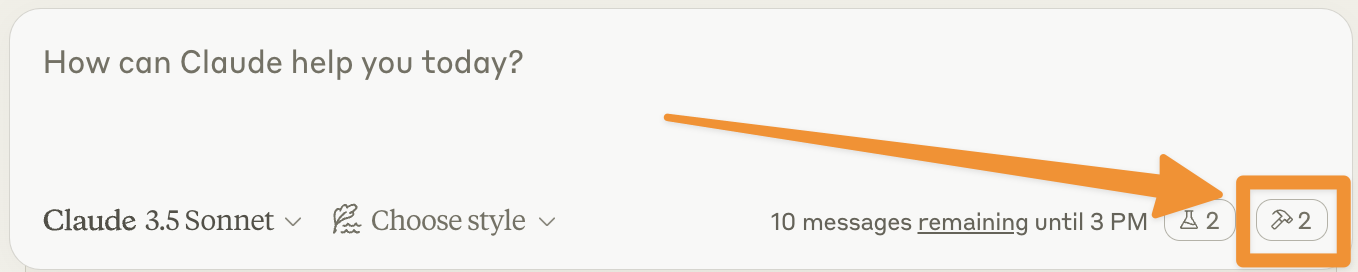 点击锤子图标后,你应该能看到列出的两个工具:
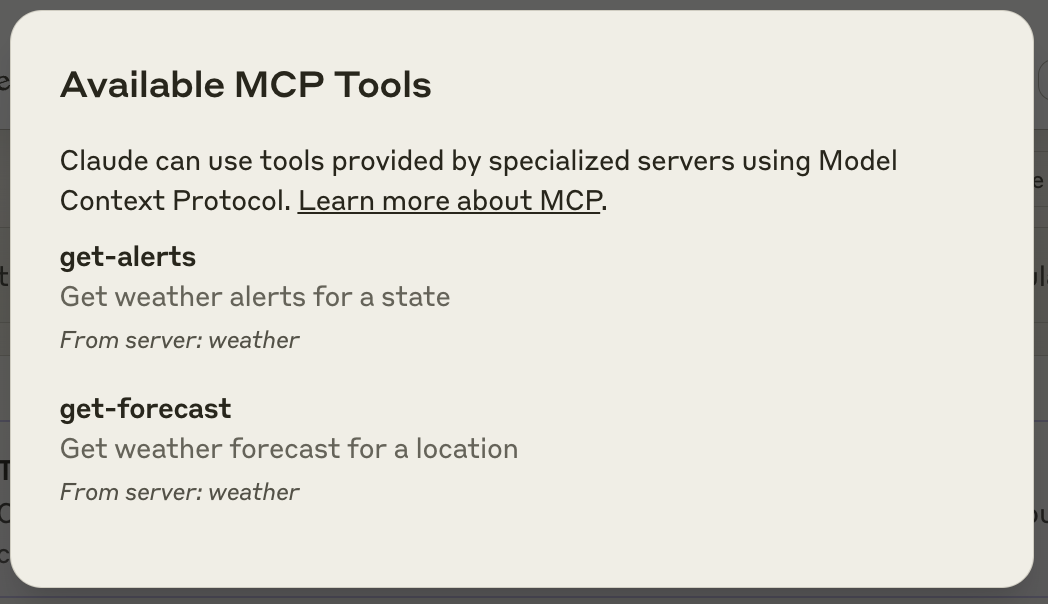 如果你的服务器没有被 Claude for Desktop 识别,请查看[故障排除](#troubleshooting)部分获取调试提示。
如果锤子图标已经显示,你现在可以在 Claude for Desktop 中运行以下命令来测试你的服务器:
* Sacramento 的天气如何?
* Texas 有哪些活跃的天气警报?
由于这是美国国家气象服务,查询只适用于美国地区。
## 幕后发生了什么
当你提出问题时:
1. 客户端将你的问题发送给 Claude
2. Claude 分析可用的工具并决定使用哪个工具
3. 客户端通过 MCP 服务器执行所选工具
4. 结果返回给 Claude
5. Claude 形成自然语言响应
6. 响应显示给你!
## 故障排除
**获取Claude桌面版日志**
Claude.app与MCP相关的日志记录在`~/Library/Logs/Claude`目录下:
* `mcp.log`包含有关MCP连接和连接失败的一般日志。
* 名为`mcp-server-SERVERNAME.log`的文件包含指定服务器的错误(stderr)日志。
你可以运行以下命令列出最近的日志并实时跟踪新的日志:
```bash theme={null}
# 检查Claude的日志是否有错误
tail -n 20 -f ~/Library/Logs/Claude/mcp*.log
```
**服务器未在Claude中显示**
1. 检查你的`claude_desktop_config.json`文件语法
2. 确保项目路径是绝对路径而不是相对路径
3. 完全重启Claude桌面版
**工具调用静默失败**
如果Claude尝试使用工具但失败:
1. 检查Claude的日志是否有错误
2. 验证你的服务器构建和运行是否无错误
3. 尝试重启Claude桌面版
**以上方法都不起作用,我该怎么办?**
请参考我们的[调试指南](/docs/tools/debugging)获取更好的调试工具和更详细的指导。
**错误:无法获取网格点数据**
这通常意味着:
1. 坐标在美国境外
2. NWS API出现问题
3. 你被限制请求频率
解决方法:
* 验证你使用的是美国坐标
* 在请求之间添加小延迟
* 检查NWS API状态页面
**错误:\[州]没有活动警报**
这不是错误 - 这只是意味着该州目前没有天气警报。尝试其他州或在恶劣天气期间检查。
要获取更高级的故障排除方法,请查看我们的[MCP调试](/docs/tools/debugging)指南
## 下一步
学习如何构建可以连接到你的服务器的 MCP 客户端
查看我们的官方 MCP 服务器和实现示例库
学习如何有效调试 MCP 服务器和集成
学习如何使用像 Claude 这样的 LLMs 来加速你的 MCP 开发
如果你的服务器没有被 Claude for Desktop 识别,请查看[故障排除](#troubleshooting)部分获取调试提示。
如果锤子图标已经显示,你现在可以在 Claude for Desktop 中运行以下命令来测试你的服务器:
* Sacramento 的天气如何?
* Texas 有哪些活跃的天气警报?
由于这是美国国家气象服务,查询只适用于美国地区。
## 幕后发生了什么
当你提出问题时:
1. 客户端将你的问题发送给 Claude
2. Claude 分析可用的工具并决定使用哪个工具
3. 客户端通过 MCP 服务器执行所选工具
4. 结果返回给 Claude
5. Claude 形成自然语言响应
6. 响应显示给你!
## 故障排除
**获取Claude桌面版日志**
Claude.app与MCP相关的日志记录在`~/Library/Logs/Claude`目录下:
* `mcp.log`包含有关MCP连接和连接失败的一般日志。
* 名为`mcp-server-SERVERNAME.log`的文件包含指定服务器的错误(stderr)日志。
你可以运行以下命令列出最近的日志并实时跟踪新的日志:
```bash theme={null}
# 检查Claude的日志是否有错误
tail -n 20 -f ~/Library/Logs/Claude/mcp*.log
```
**服务器未在Claude中显示**
1. 检查你的`claude_desktop_config.json`文件语法
2. 确保项目路径是绝对路径而不是相对路径
3. 完全重启Claude桌面版
**工具调用静默失败**
如果Claude尝试使用工具但失败:
1. 检查Claude的日志是否有错误
2. 验证你的服务器构建和运行是否无错误
3. 尝试重启Claude桌面版
**以上方法都不起作用,我该怎么办?**
请参考我们的[调试指南](/docs/tools/debugging)获取更好的调试工具和更详细的指导。
**错误:无法获取网格点数据**
这通常意味着:
1. 坐标在美国境外
2. NWS API出现问题
3. 你被限制请求频率
解决方法:
* 验证你使用的是美国坐标
* 在请求之间添加小延迟
* 检查NWS API状态页面
**错误:\[州]没有活动警报**
这不是错误 - 这只是意味着该州目前没有天气警报。尝试其他州或在恶劣天气期间检查。
要获取更高级的故障排除方法,请查看我们的[MCP调试](/docs/tools/debugging)指南
## 下一步
学习如何构建可以连接到你的服务器的 MCP 客户端
查看我们的官方 MCP 服务器和实现示例库
学习如何有效调试 MCP 服务器和集成
学习如何使用像 Claude 这样的 LLMs 来加速你的 MCP 开发